
All Guides
Controls & Keybindings — Horses of Hoofprint Bay
Horses of Hoofprint Bay controls: default riding and lesson keys, remapping in Settings, jump assist options, and fixes for Space vs W jump habits from Steam posts.
Controls split cleanly: mouse on the farm, keyboard in sidescroller riding (training, trails, competitions, lessons). The Steam store page sells a hand-drawn management fantasy—drag feed, click binders—not an action RPG on the yard map. When a ride loads, you manage gait, strength, and jump timing (show jumping guide for course strategy).
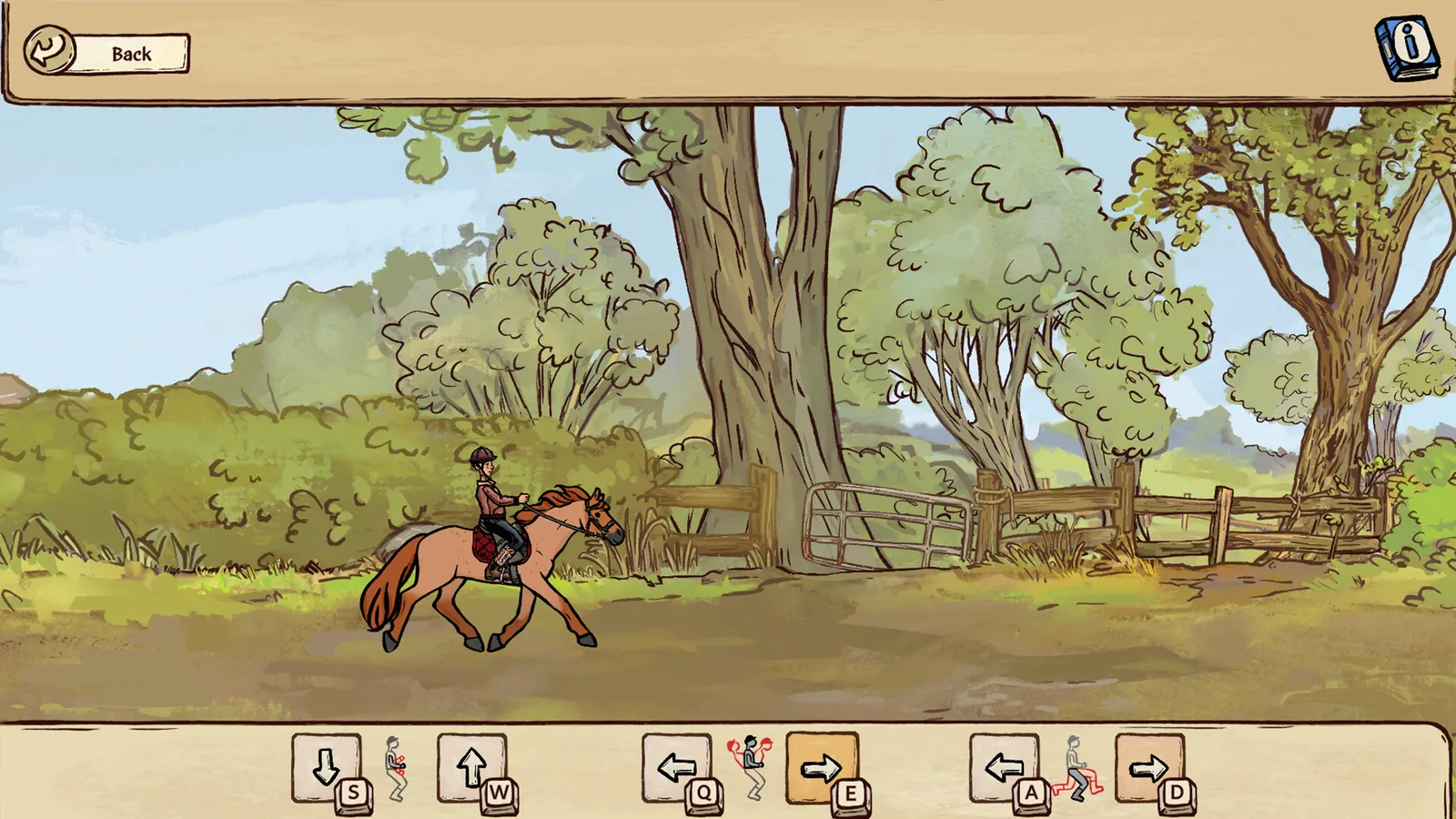
Screenshot: official Steam store page.
Mouse and point-and-click on the farm
Community guides describe:
- Click horses, buildings, hay piles, and shop items on the farm overview and care screens.
- Drag hay to racks, grain to bowls, brushes over dirt patches, and medicine onto wounds (horse care guide).
- Office binders for boarders, staff, and finances (boarders and lessons, staff guide).
Demo patch notes mention right-click to zoom out on the yard overview—quality-of-life for larger stables.
Default riding keyboard (verified sources)
We do not have a first-party public PDF of every binding. The table below merges two independent community references plus Steam demo patch notes for the jump default.
| Action | grindnstrat guide | volx.jp control table (Nov 2026) | Notes |
|---|---|---|---|
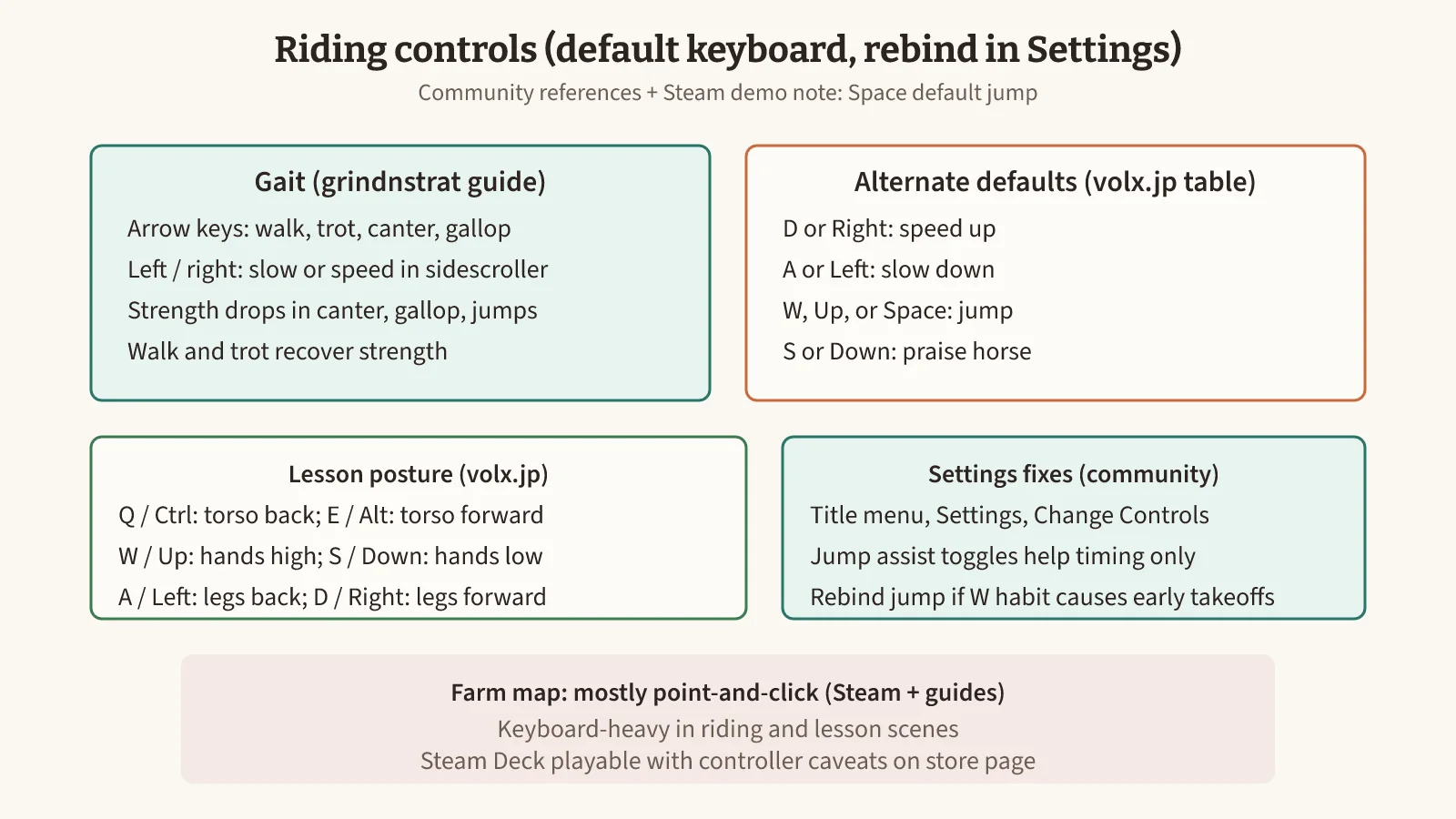
| Gait / speed | Arrow keys for walk–gallop; left/right adjust speed | D / Right faster, A / Left slower | If both feel true, your build may accept either set—open Settings to read active binds |
| Jump | Spacebar | W / Up / Space | Demo v0.1.11 patch notes: “Space as default jump key” |
| Praise horse | (not listed) | S / Down | Builds confidence after good gait changes per comparison wiki riding section |
| Confirm / menu | — | Enter with W/Up/Space in riding context | Lesson UI may share keys |
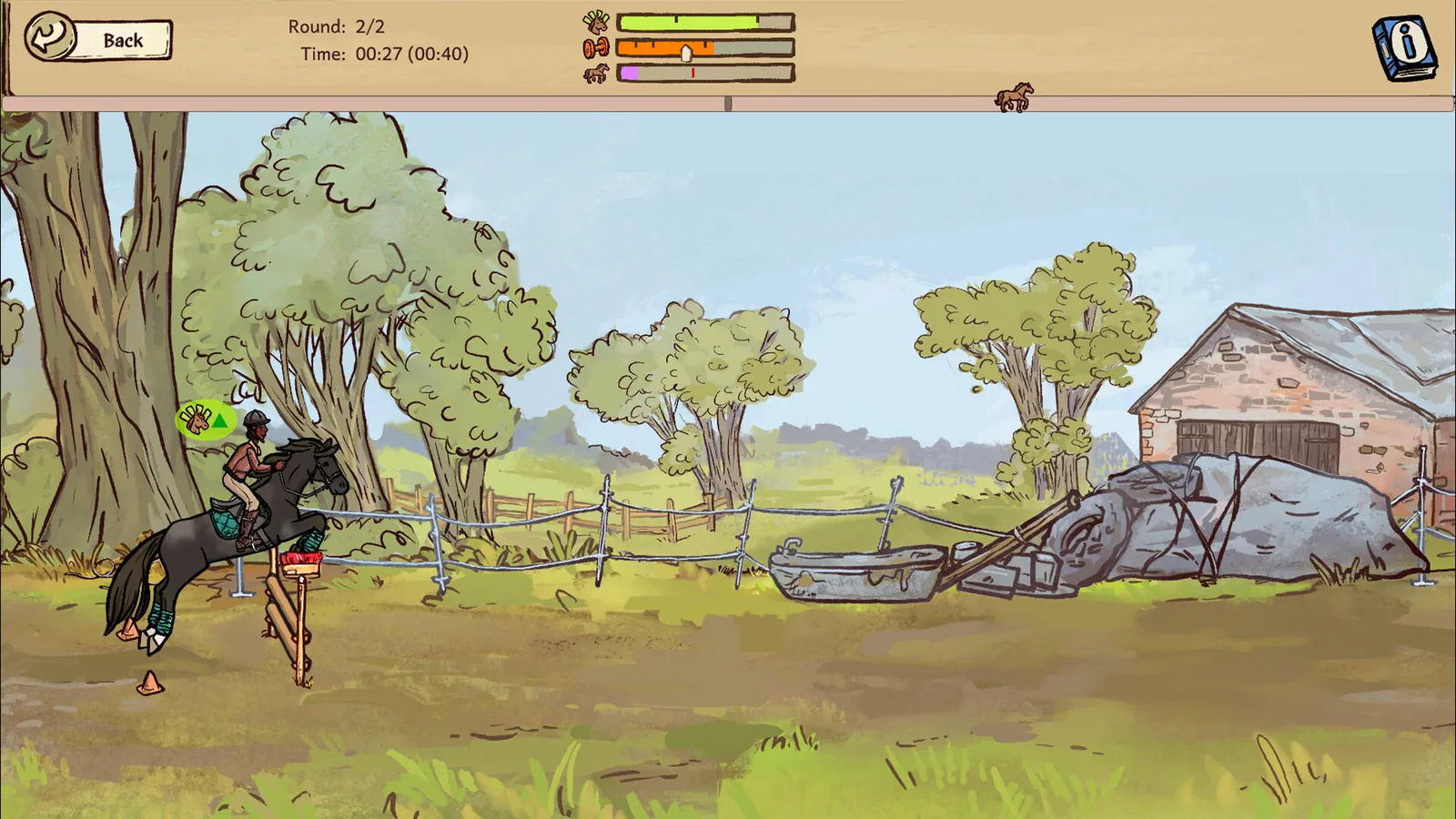
Gait, strength, and jump height
Grindnstrat aligns with competition guides:
- Canter — higher, shorter jump arc; drains strength slowly.
- Gallop — lower, wider jump; heavy strength cost.
- Walk / trot — recover strength between fences.
Low confidence horses may try to change gait; press the indicated direction during the warning window (training guide, personality traits).
Riding lesson posture keys
During riding lessons you correct the student’s legs, hands, and torso. The volx.jp table (compiled from the in-game Change Controls screen) lists:
| Correction | Default keys |
|---|---|
| Torso back | Q / Ctrl |
| Torso forward | E / Alt |
| Hands higher | W / Up |
| Hands lower | S / Down |
| Legs back | A / Left |
| Legs forward | D / Right |
Beginner lesson tiers skip hand corrections per /farm/boarders-and-lessons/. Higher tiers hide mistakes more subtly—same keys, tighter timing.
Remapping and jump assist
Remapping path (community documentation): title menu → Settings → scroll to Change Controls → select the action → press the new key.
Steam General Discussions threads from launch week highlight a common friction: players used to Space = jump in other games press W expecting speed, because some guides describe W as jump while grindnstrat emphasizes arrows + Space. Fixes players report:
- Rebind jump to Space (or keep Space and move accelerate to D if you prefer WASD).
- Toggle jump assist options in Settings—helpful for Novice show jumping timing, not a guarantee to clear (medium show jumping guide).
- Practice obstacle-specific timing (vertical vs oxer vs water) rather than one button rhythm.
Settings beyond keybindings
Sources mention (verify labels on your patch):
- Language — including Japanese per volx.jp walkthrough.
- Jump assist / auto jump — demo patches adjusted auto jump on specific tutorial obstacles; assists remain optional for competitions per player posts.
- Accessibility — Steam sidebar lists color alternatives, camera comfort, difficulty levels, and save-anytime among supported features on the store page metadata.
Sources and verification
Compiled 2026-11-05 from grindnstrat riding section, volx.jp control walkthrough, Steam demo patch notes v0.1.11 via SteamPeaks mirror (Space default jump), Steam discussion — controls and jump assist, and the Steam store page. Items marked “reported” come from community guides and were not independently confirmed in-game.
Not verified in first-party docs here: complete official binding PDF; exact label strings for every jump-assist toggle. Conflict handled: gait on arrows (grindnstrat) vs D/A speed keys (volx)—both documented; readers should read the in-game Settings screen as tiebreaker.
FAQ
Where do you change keybindings in Hoofprint Bay?
What is the default jump key?
How do you control gait while riding?
What are jump assist settings?
Does the game support controller only?
What keys are used during riding lessons?
Related Articles
competitions
Caprilli Guide — Horses of Hoofprint Bay
Caprilli in Horses of Hoofprint Bay: what the test checks, how to unlock and enter, scoring basics, and prep low-stat horses before show jumping.
competitions
Medium Show Jumping Guide — Horses of Hoofprint Bay
Win Novice (medium) show jumping in Horses of Hoofprint Bay: prep checklist, jump assist limits, strength training, and timing fixes for the post-Beginner wall.
competitions
Show Jumping Guide — Horses of Hoofprint Bay
Show jumping in Horses of Hoofprint Bay: town entry, licenses, levels, jump timing, strength tips, and common faults—clear Beginner before chasing Novice.
Was this helpful?
Thanks for the feedback!